

Create agent
To create an agent, click “Agents” on the left sidebar. This will take you to a list of the existing agents for your org. To create a new one, click “New agent” in the top-right corner.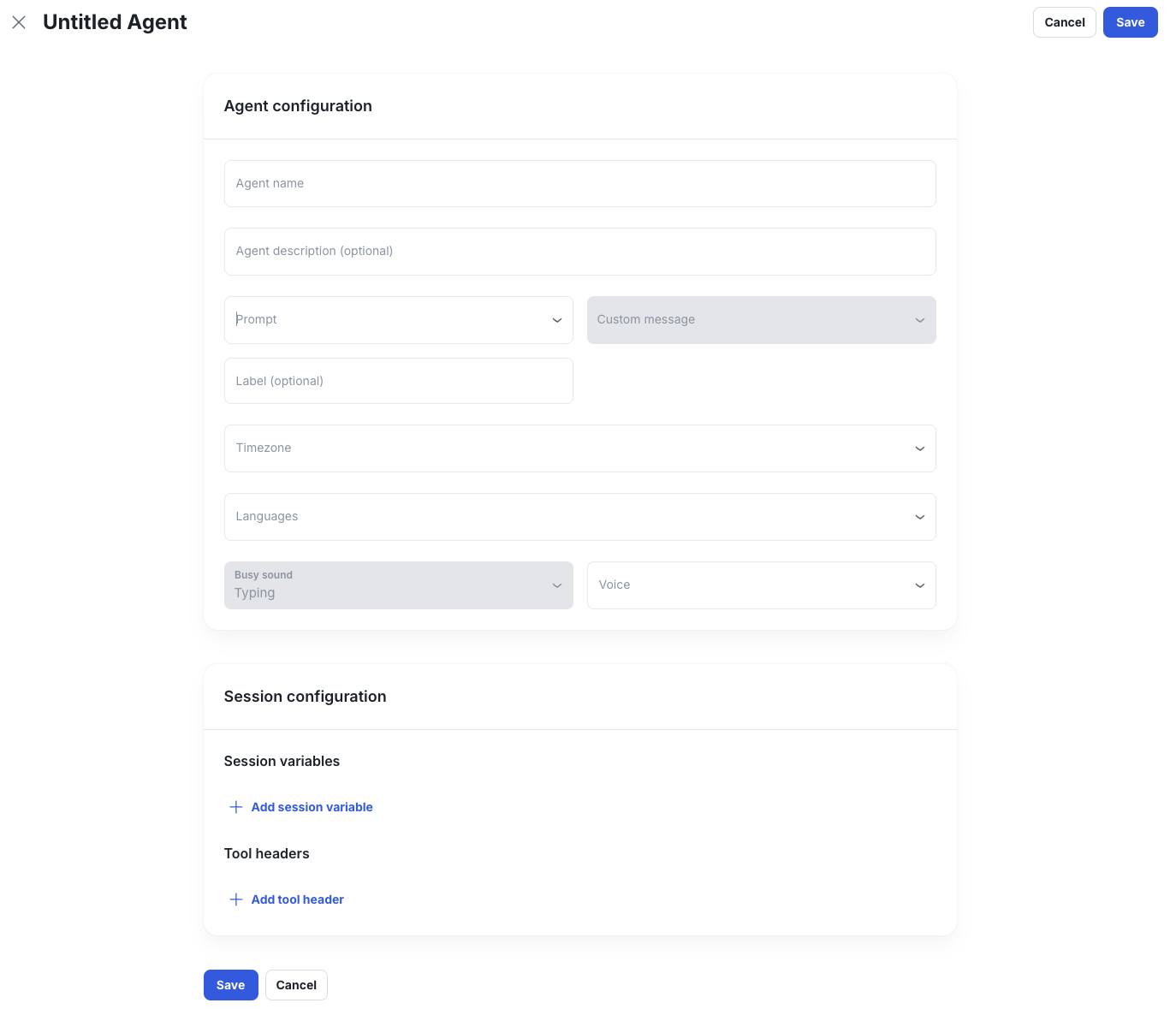
- Agent name: The name of the agent is used to reference it elsewhere in Console, so you should pick something that’s easily identifiable.
- Agent description (optional): This description is displayed for extra context on the agent list screen you just saw.
- Prompt: The prompt that the agent will use for the LLM.
- Message (optional): The message that the agent will deliver to the user at the beginning of a conversation.
- Timezone: The agent’s home timezone.
- Speech-to-text: The speech-to-text provider that the agent will use to interpret user input in voice conversations.
- Voice Group (optional): If you have configured a voice group, you can select it here to provide the agent access to the voice group’s languages and voices.
- Busy sound: The sound that will be played to the user in voice conversations after they finish speaking while they’re waiting for a response from the agent.
- Label (optional): Labels are used for filtering agents on the agent list screen.
null value for that parameter.
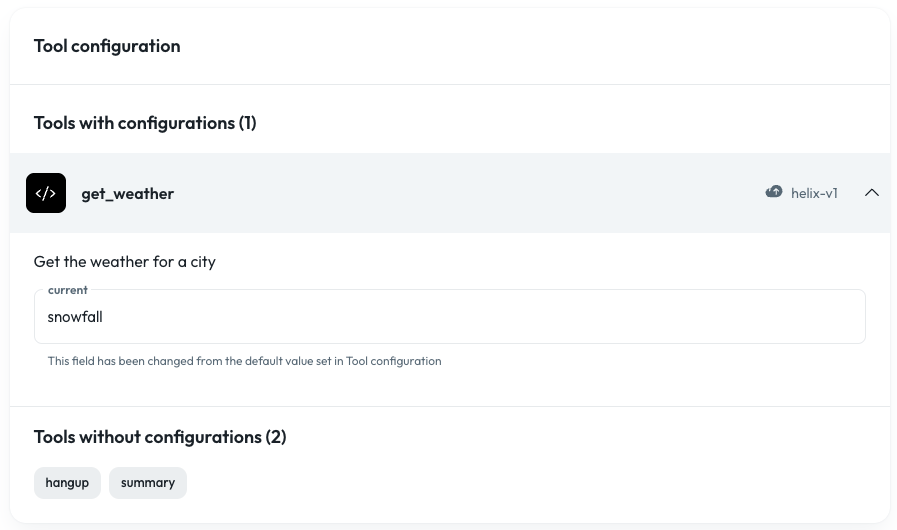
To do this, go to the page for your agent, click Edit, and scroll down to the “Tool configuration” section. Initially, the tool-level default value for the static parameter will be displayed, if one exists. If you override the value, any calls to the tool from this agent will use the agent’s override value instead of the default one. (If no override value is set for a given static parameter and the agent is therefore falling back to the tool-level default, note that any changes to the default will also affect this agent.)
For example, if you were using the get_weather tool from the Tools doc linked above, and you wanted a specific agent to only fetch snowfall information rather than the full list of data specified as the tool-level default, you could navigate to that agent and set an override value for the current static parameter to “snowfall”.
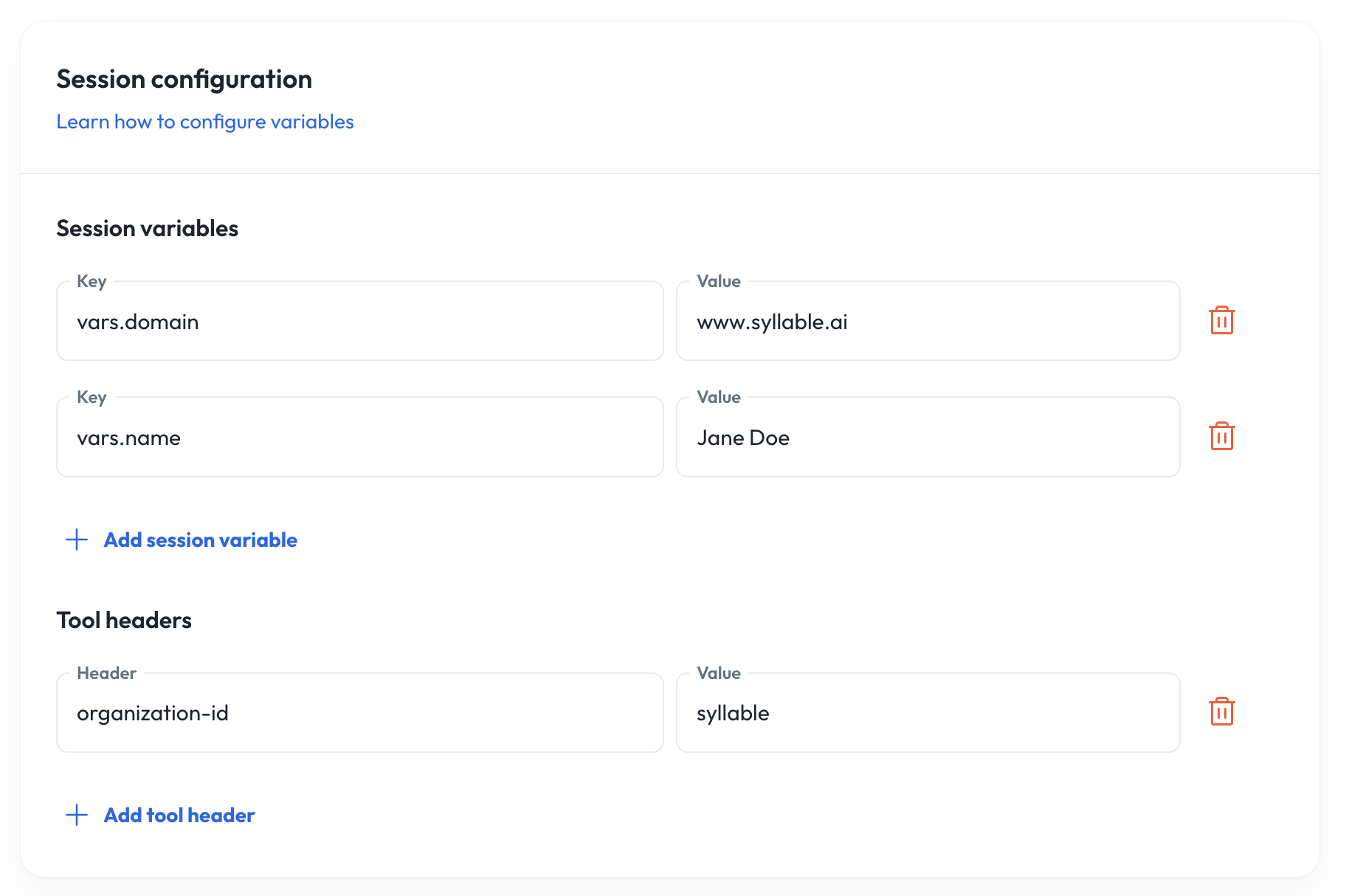
{vars.session_variable} as a reference in your prompt.
- Example: A message reads “Hello! My name is
{vars.name}! How can I assist you today?” By providing a session variable key asvars.name, and its value as “Jane Doe”, the agent-level value will be substituted into the message when a user talks to this agent. - This allows you to use the same prompt or message for multiple agents, but still include agent-specific information.
- Note: Headers configured here will be used by the agent for all tools.
- For example, the general information tool uses the “domain” tool header which specifies which website the general information tool should look through to find answers. To do this you should set the domain key and use www.syllable.ai as the value
Note: The language recorded at the start of a conversation is not updated when a caller switches mid-call. Use the session’s active language for current-state accuracy in analytics and reporting.
Test agent
Interact and test your agent’s behavior over multiple channel modes: Voice or Chat. As you build out your prompt, quickly iterate and interact with the agent to see how it starts the conversation, how it handles edge cases and API tool calls.- Note: Start testing your agent without setting up telephony integrations or channels. Syllable provides a free test phone number and automatically generates test web and voice channels for you.
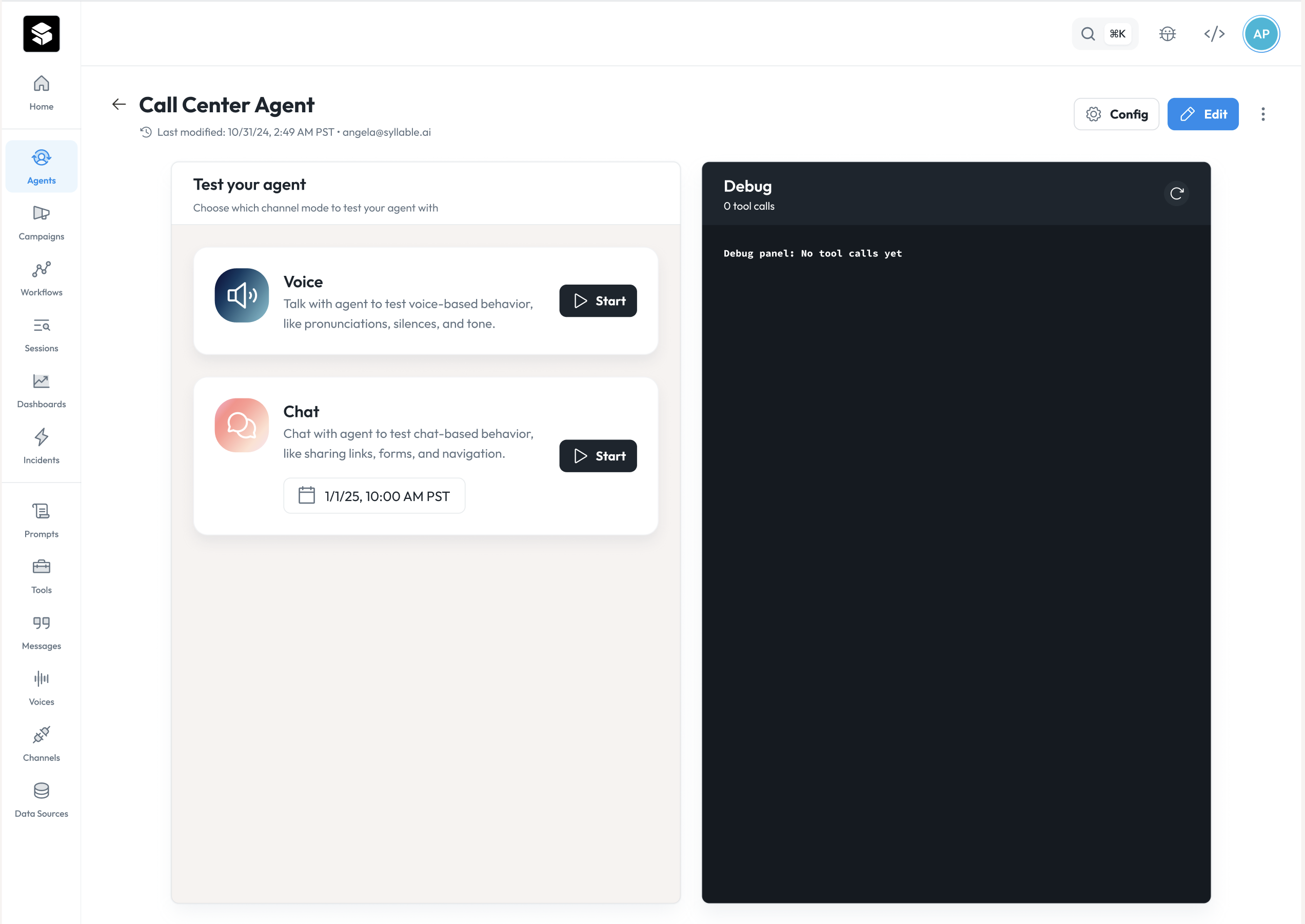
- For voice, test your agent’s language, voice, tone, pacing, and pronunciation. Check how the agent handles silences or interruptions.
- For chat, you can test your agent’s greeting, responses, behavior, and tool calls. You can also select a different day and time to check agent behavior. (e.g. holidays, weekends, closed hours)
Voice test
Click “Start” on the voice card to start a voice test. We will automatically generate a web voice channel for you to use for testing.- Note: Depending on your browser, you will need to allow mic and audio permissions.
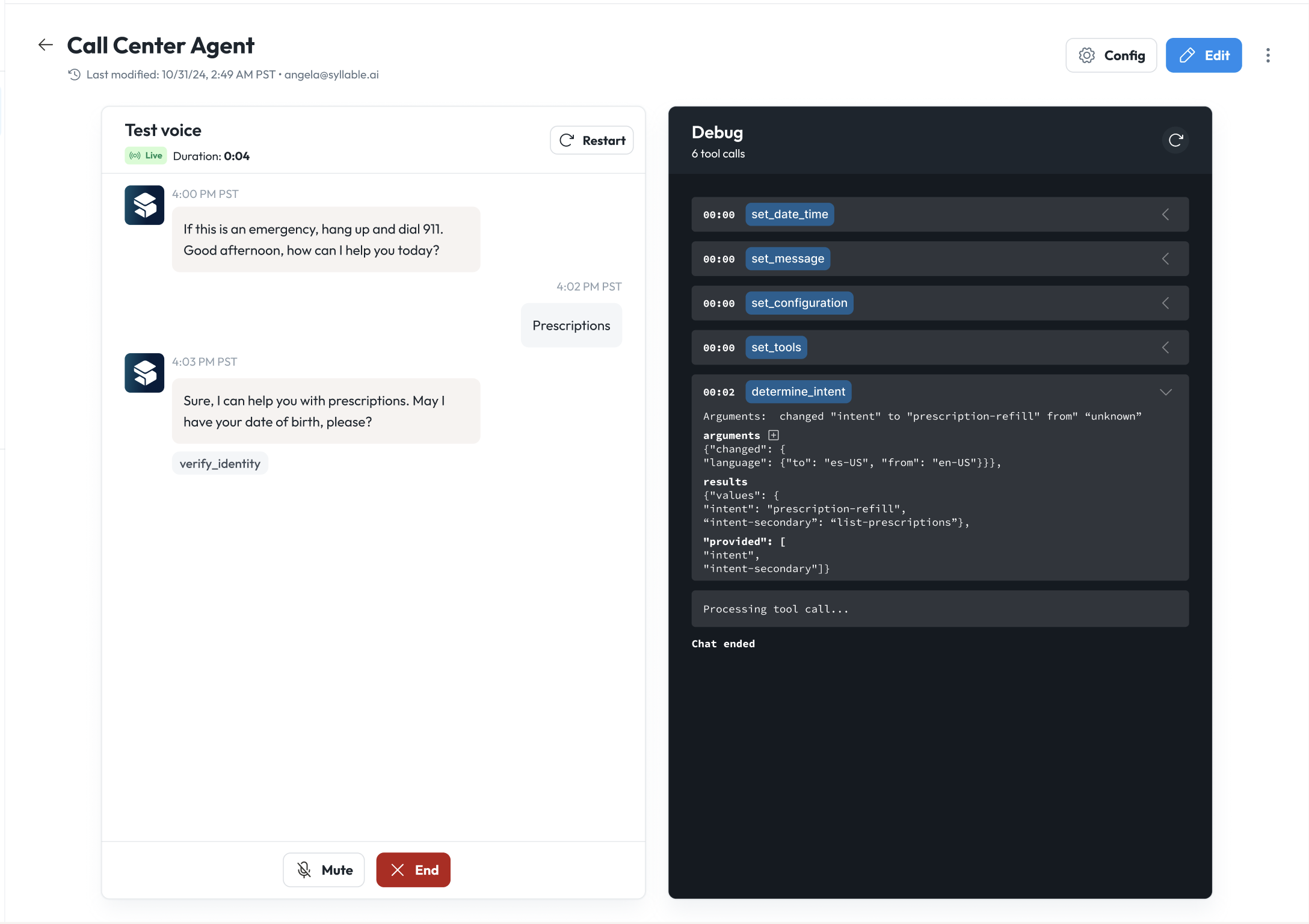
- Conversation panel: When you start your voice test, you will see a live transcription of your conversation.
- Debug panel: You can see tool calls in the debug panel along with arguments sent to our system.
- Restart: End the current test session and start a new test session
- Mute: Mute yourself. Agent will not be able to hear you talking or your mic’s background noise.
- End: End the test session
Chat test
Click “Start” on the chat card to start a chat test. We will automatically generate a test web channel.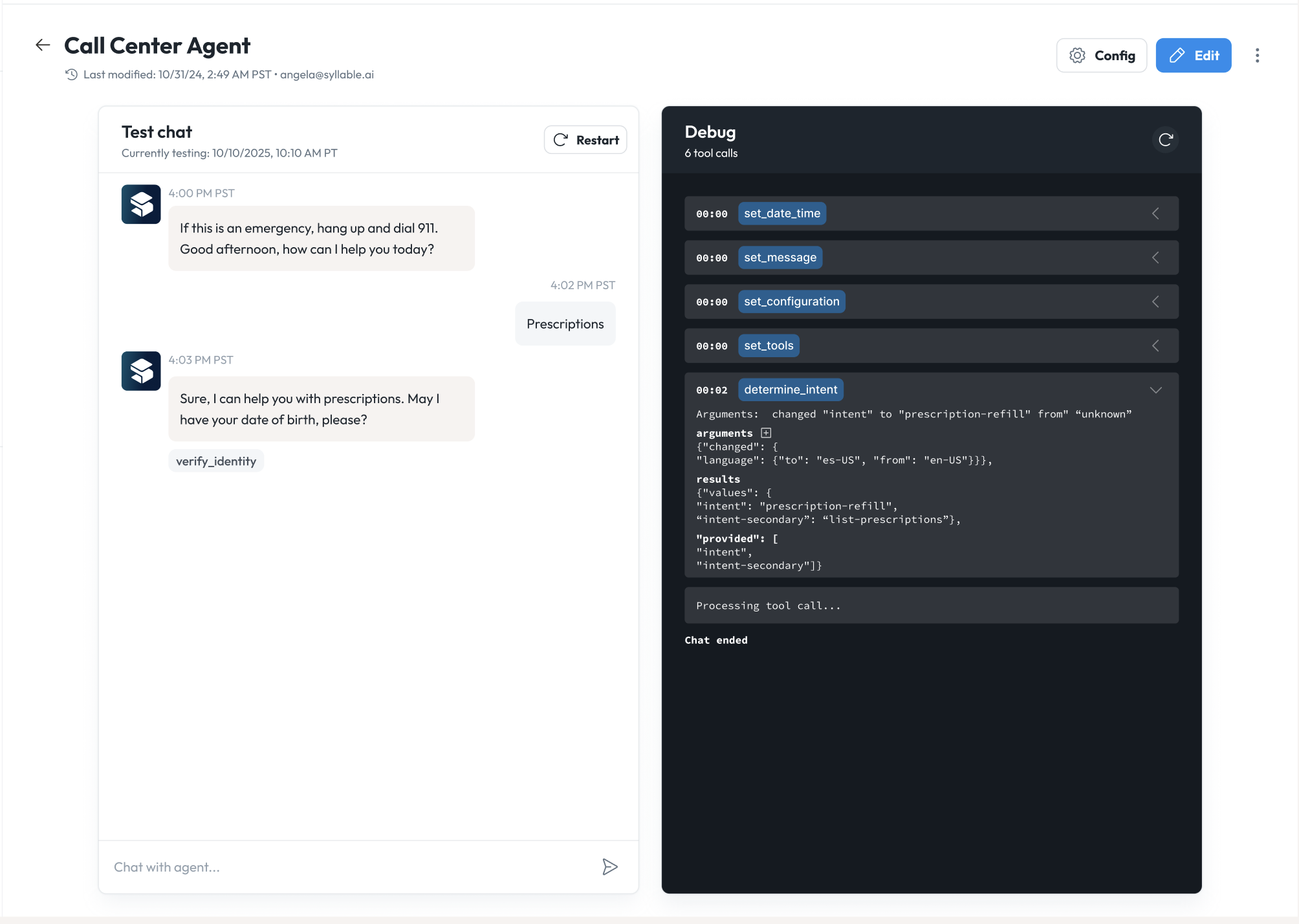
- Conversation panel: When you start your voice test, you will see a live transcription of your conversation.
- Debug panel: You can see tool calls in the debug panel along with arguments sent to our system.
- Restart: End the current test session and start a new test session
- End: End the test session